Understand Bleed & Crop Marks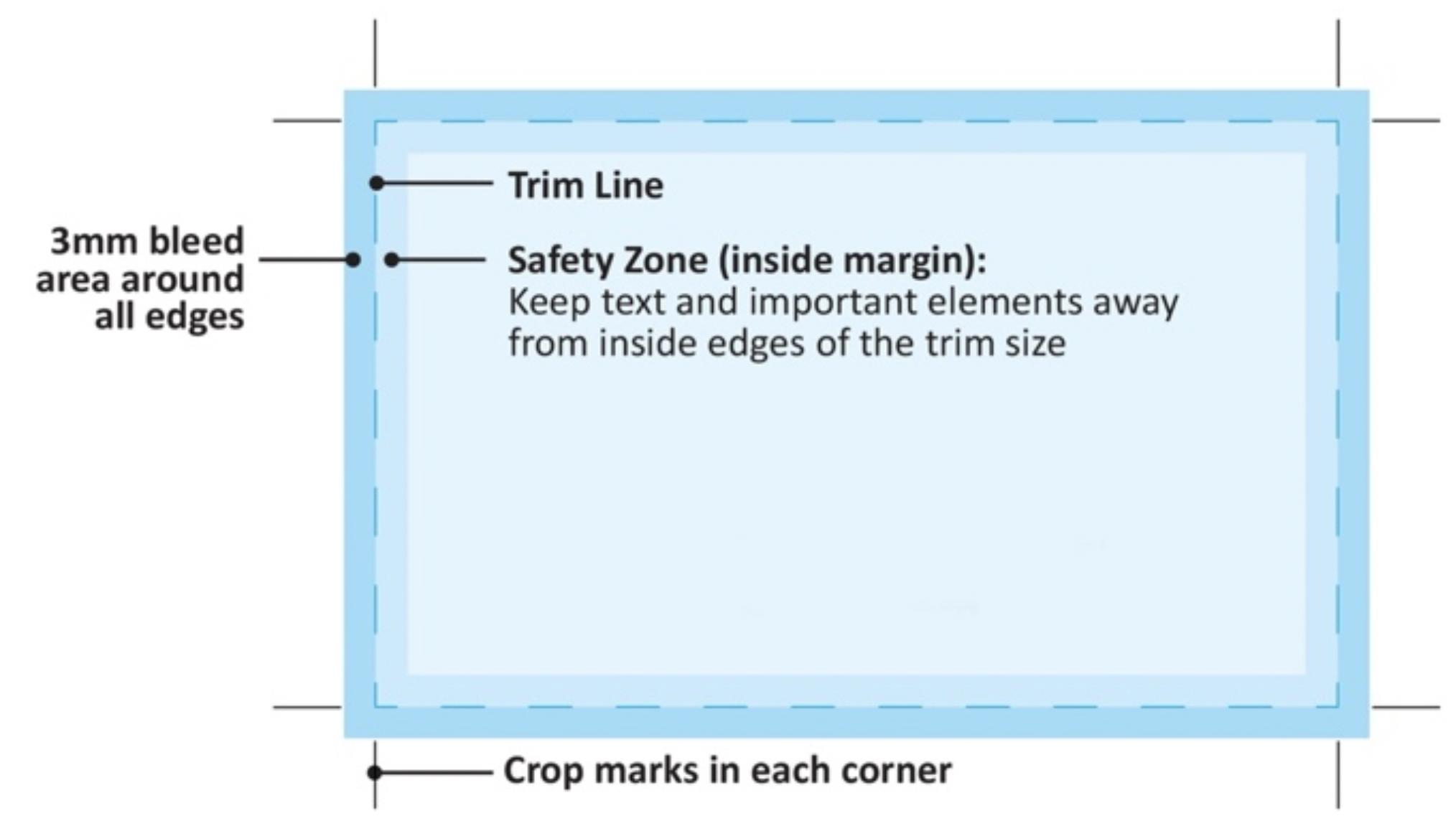
- Bleed: Extra image area extending beyond the trim edge of the page (3 mm all around). This ensures no white gaps if trimming shifts slightly.
- Crop (Trim) Marks: Thin lines placed just outside the trim area to guide where the printer should cut.
Set Up the Document with Bleed
IN CANVA:
- In the top menu, go to File > Show Print Bleed.
- Canva will display a dashed line border around your document.
- The space between the solid page edge and the dashed line is your bleed area (usually about 3 mm).
Extend Backgrounds & Images
- Make sure background colours, patterns, and images extend past the dashed bleed line to the document edge.
- This ensures no white edges after trimming.
- Keep logos, text, and important elements well inside the dashed safe zone (at least 3–5 mm from the trim line).
Download with Crop Marks & Bleed
- When finished, click Share > Download.
- Choose PDF Print as the file type.
- Under Options, check as follows:
 Crop marks and bleed
- Flatten
- Then click Download.
This will generate a print-ready PDF with crop marks and the correct bleed area.
IN ADOBE ILLUSTRATOR / INDESIGN:
- When creating a new document, look for Bleed Settings.
- Enter 3 mm (or your printer’s specification) for all sides.
- If the file is already created, go to File > Document Setup and add bleed there.
Extend Artwork into Bleed Area
- Any background colour, images, or design elements that should print to the edge must extend into the bleed area.
- Keep text and critical elements at least 3–5 mm inside the trim edge (safe zone).
Add Crop (Trim) Marks
When you export to PDF, crop marks can be automatically added:
- File > Export > Adobe PDF (Print).
- In the Marks and Bleeds section, check:
- Crop Marks
- Use Document Bleed Settings
- Choose the correct preset (like PDF/X-1a) for printing.
Exporting the PDF
- Use High Quality Print or Press Quality
- Make sure the Bleed settings and Crop Marks are checked before clicking Export.
- Verify the exported PDF in Adobe Acrobat:
- Turn on “Output Preview” to see trim and bleed.
- Ensure crop marks appear outside the trim edge.
All too technical? We can help
If you find this all too technical, and you’d like our help, we can add the crop marks and bleed for you. Just send us your high-quality PDF file to print@cessnockprintplace.com.au
There is a minimum setup fee for this at $25 inc GST, but it may be higher for files that are complex or are multi-page documents.
We will confirm the exact cost for adding crop marks and bleed to your artwork and get your approval before proceeding.